Salesforce Now Requires Email Domain Verification

If you send emails through Salesforce, there’s an important update you need to pay attention to. Starting March 9, 2026, Salesforce has rolled out a new requirement — you must now prove that you own the email domain you’re sending from.

The current image has no alternative text. The file name is: image.png

So, What Is Email Domain Verification?

Think of it this way — when Salesforce sends an email on your behalf (say, from yourname@yourcompany.com), it now needs to confirm that your organization actually owns the domain “yourcompany.com”.

Without this verification, Salesforce will simply stop delivering those emails. That means leads, customers, and colleagues might never receive messages you send through Salesforce — without any error message warning you.


Who Does This Affect?

This affects anyone who sends emails through Salesforce using a custom company domain — like @yourcompany.com, @yourbrand.in, etc.

The good news? You’re not affected if you send emails using:

  • Personal email addresses like Gmail (@gmail.com) or Outlook (@outlook.com)
  • Gmail or Office 365 integrations connected to Salesforce
  • Einstein Activity Capture (EAC)
  • Free or trial Salesforce orgs

What Are the Deadlines?

Salesforce is giving everyone a little time to get this done, but the clock is ticking:

  • New domains → Verification required right now, immediately
  • Sandbox orgs (used for testing) → Verify by March 30, 2026
  • Production orgs (your live Salesforce environment) → Verify by April 27, 2026

The safest move? Do it as soon as possible — don’t wait until the last day.


How Do You Verify Your Domain?

There are two ways to do this. Your IT team or Salesforce Admin will handle the technical parts, but here’s a plain-English explanation of both:


Option 1: DKIM (Recommended ✅)

DKIM stands for DomainKeys Identified Mail — it’s basically a digital signature that gets attached to your emails, proving they’re genuinely from your domain.

Setting it up involves generating a key inside Salesforce and then adding a small record to your domain’s DNS settings (that’s managed wherever you registered your domain — like GoDaddy, Cloudflare, etc.).

Once it’s active, your domain is considered verified. This is the method Salesforce recommends.


Option 2: Authorized Email Domains

If you’d rather not use DKIM, you can verify your domain through Salesforce’s Authorized Email Domains setup. Here’s how it works, step by step:

In Salesforce:

  1. Go to Setup and search for Authorized Email Domains in the Quick Find box
  2. Click Add
  3. Type in your domain name (e.g., yourcompany.com)
  4. Click Save
  5. Salesforce will generate a verification key — copy it

In your DNS settings (done by your IT team):

  1. Log into wherever your domain is managed (GoDaddy, Cloudflare, Route 53, etc.)
  2. Add a new TXT record with either _sfdv.yourcompany.com or yourcompany.com as the name
  3. Paste the verification key Salesforce gave you as the value
  4. Save the record

Back in Salesforce:

  1. Go back to Authorized Email Domains in Setup
  2. Find your domain and click Edit
  3. Turn on Verify domain ownership
  4. If everything is set up correctly, it’ll confirm successfully. If not, wait a few minutes for the DNS change to spread across the internet, then try again.

One More Thing — User Email Verification Still Applies

Even after your domain is verified, each individual user’s email address still needs to be verified separately. Domain verification and user verification are two different things — both are required.
Discover Salesforce Spring ’26: Major Feature Upgrades Explained

Goodbye winter blues, hello Spring ’26!

It’s that time of year again. The flowers are blooming, the birds are chirping, and Salesforce has just dropped its latest massive update.

We know what you’re thinking: “Another release? Do I really need to read 500 pages of release notes?”

Nope. We did it for you.

The Spring ’26 release is less about adding complicated new tools and more about making the tools you already have faster, smarter, and way easier to use. It’s about “spring cleaning” clunky processes and letting automation handle the heavy lifting.

Here is your super-simple breakdown of the best stuff blooming in Salesforce this season.


1. Einstein Just Got a Massive Personality Upgrade

Remember when Einstein used to just suggest next steps? That’s so 2024.

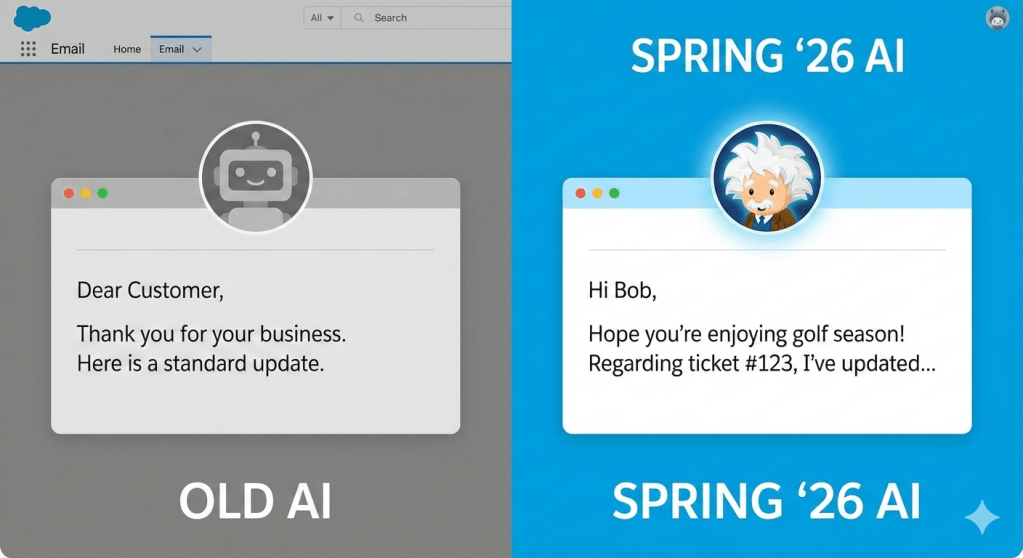
In Spring ’26, Einstein AI has become unprecedentedly personalized. It doesn’t just generate generic emails anymore; it learns your specific tone of voice and the historical context of your relationship with a customer.

In plain English: Imagine drafting an email to a long-time client. Einstein will now pop up and say, “Hey, I noticed you usually joke with Bob about golf. Here’s a draft email that includes a friendly golf reference and addresses his open service ticket.”

It’s less robotic, more human.

spring26 salesforce

2. Salesforce Flow: Now “No-Code” Really Means No-Code

Let’s be honest: Salesforce Flow is powerful, but it can sometimes feel like you need a computer science degree to build a complex one.

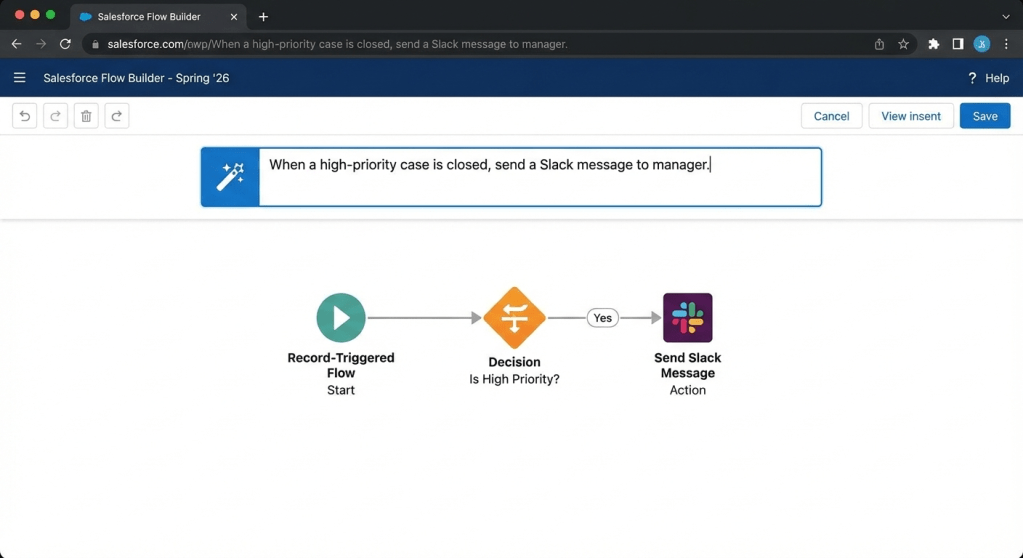
Spring ’26 changes the game with the new “Natural Language Flow Builder.”

Instead of dragging dozens of complicated boxes and arrows, you can now type what you want to happen in a text box, and Salesforce builds the Flow structure for you.

In plain English: You type into a box: “When a high-priority case is closed, send a Slack message to the manager.”

Boom. Salesforce instantly creates the elements on the canvas for you. You just tweak the details. It’s automation magic.

Einstein

3. The “Speed Demon” Interface Update

Sometimes the best features aren’t new buttons, but speed.

Salesforce has done some serious under-the-hood engineering for Spring ’26. They are calling it “Lightning Velocity,” and the focus is purely on page load times.

In plain English: Opening records, switching between tabs, and saving data is noticeably snappier. Less staring at loading spinning wheels, more getting work done. It feels cleaner, lighter, and faster.

Lightning Velocity

4. Data Cloud for the Rest of Us

For a while, “Data Cloud” felt like something only massive enterprises with huge data teams needed to worry about.

Spring ’26 makes connecting your data incredibly simple with “One-Click Connectors.”

Do you have customer data sitting in an old Google Sheet? Or maybe a Shopify store? This update makes pulling that data into Salesforce so you have a single view of your customer easier than ever.

In plain English: You stop having five different tabs open trying to figure out what a customer bought and why they are emailing support. It’s all right there on their Salesforce contact record, without needing a developer to set it up.

The Batch Apex “Ghost Data” Mystery: Why finish() Sees What execute() Missed

Have you ever experienced this Salesforce scenario? Your Batch Apex job marks itself as “Completed,” yet you discover thousands of records that were never touched by your business logic. You check debug logs for the execute() methods and find nothing for those records. Yet, oddly, the finish() method seems aware of the total scope.

Welcome to the nuances of Batch Apex Transaction Isolation.

This post solves the mystery of why your finish() method can query data from the original start() scope that individual execute() methods never successfully processed.

The High-Level: It’s About Boundaries

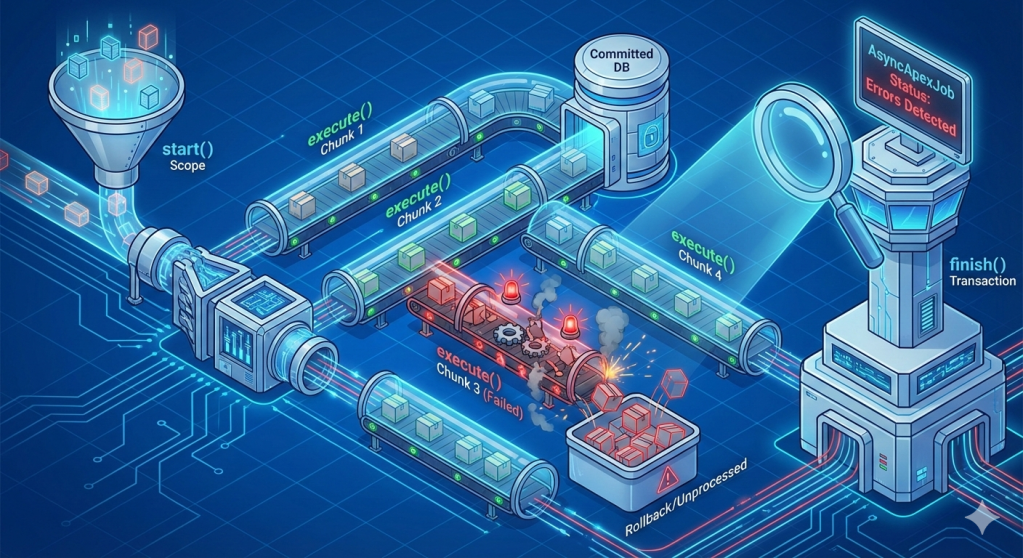
In Salesforce Batch Apex, the finish() method executes in a completely separate transaction after all batches have completed (or failed).

Because of transaction isolation, each execute() chunk runs independently. If a chunk fails due to governor limits or unhandled exceptions, that entire chunk rolls back silently. The records in that chunk are never committed to the database in their processed state.

However, finish() gets the “30,000-foot view” post-completion. It can see the final state of the database (where those records still look unprocessed) and query the job metrics to see exactly what went wrong.

Batch apex, salesforce, flow

Visualizing the Disconnect

Here is the flow of a batch job. Notice how the execute() chunks are isolated lanes, while finish() is a separate checkpoint at the end.

Detailed Breakdown: Transaction Isolation

Batch Apex processes records in rigid, isolated transactions. Each execute() handles its scope (e.g., 200 records) with its own brand new set of governor limits.

If Chunk 3 hits a CPU timeout or a “Too many SOQL queries” error:

  1. The execution stops immediately.
  2. All DML operations within that specific chunk transaction are rolled back.
  3. Crucially: The job does not abort. It moves on to Chunk 4.

The records in Chunk 3 remain untouched in the database.

When the finish() method finally runs in its own isolated transaction, it accesses two key things:

  1. Full Job Metrics: By querying AsyncApexJob, it sees the reality of the failures.
  2. Database State: It sees the database exactly as it is. Since Chunk 3 rolled back, re-querying the original criteria reveals records that still match the “unprocessed” criteria.

Example Scenario: You have 1,000 records split into 5 chunks of 200. Chunk 3 fails on a governor limit.

  • execute() view: It never finished processing those 200 records.
  • finish() view (via AsyncApexJob): TotalJobItems: 5, NumberOfErrors: 1, ExtendedStatus: "System.LimitException: Too many SOQL queries: 101"

The Code That Reveals the Discrepancy

Use your finish() method to act as the source of truth by querying the job status directly.

global void finish(Database.BatchableContext bc) {
// 1. Query the AsyncApexJob to get the true execution metrics
AsyncApexJob job = [SELECT Id, Status, NumberOfErrors,
TotalJobItems, CompletedDate, ExtendedStatus
FROM AsyncApexJob WHERE Id = :bc.getJobId()];
System.debug('Job finished. Total Batches: ' + job.TotalJobItems);
System.debug('Batches with Errors: ' + job.NumberOfErrors);
if (job.NumberOfErrors > 0) {
// ExtendedStatus often contains the specific limit exception message
System.debug('Failure Reason (ExtendedStatus): ' + job.ExtendedStatus);
// Optional: Re-run the original start query to identify exactly which
// records remain unprocessed in the database.
// List<Account> unprocessed = Database.query(yourOriginalSOQLString);
// System.debug(unprocessed.size() + ' records remain unprocessed in DB.');
}
}

Dashboard for your security settings

If you are wondering do we have dashboard where we can check all the security settings of your org.

The Answer is YES!

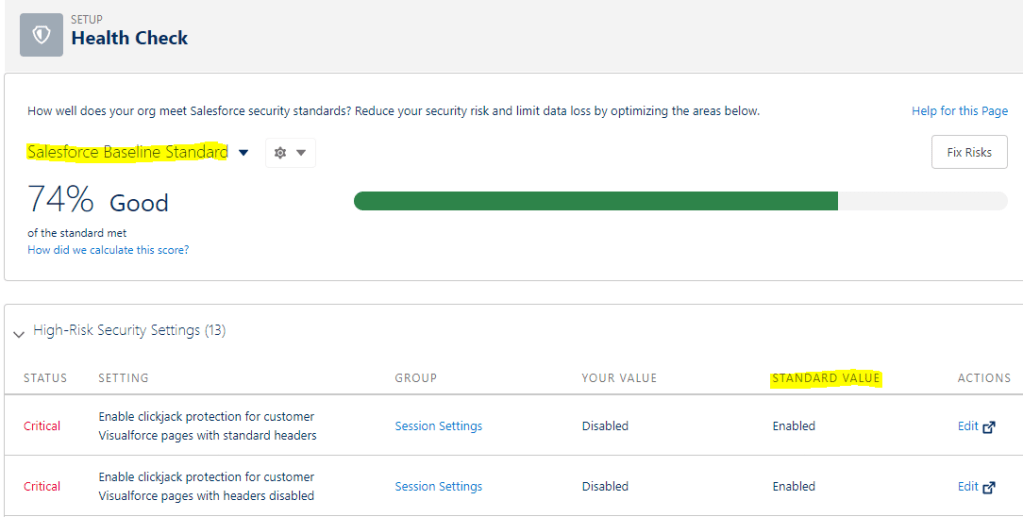
Salesforce provides a dashboard named Health check which gives you an ability to know all about your org’s security settings.
You can find it in ‘SETUP’
Setup –> Quick Find Box –> type –> Health Check

  • It helps you to identify any vulnerabilities to your system and fix them.
  • It has the scales between 0-100. 100 know for more secured
  • You can upload your custom Baseline to measure the security . Salesforce Baseline standard is default baseline
  • 4 types of Risk: High Risk, Medium Risk, Low Risk, Informational
  • As an standard value, salesforce provides a recommended value against all the risk that can be minimized.

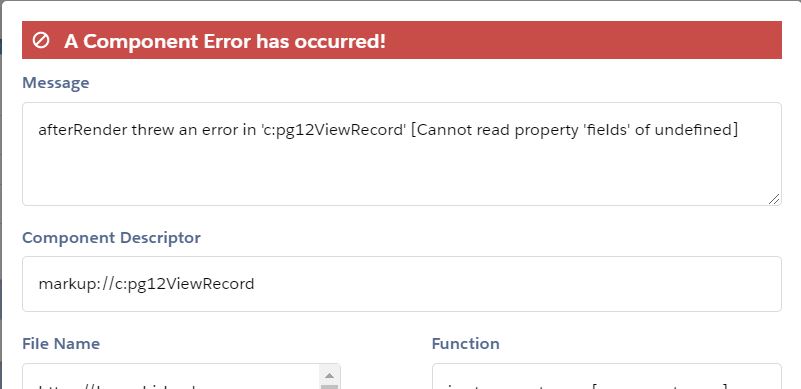
Error: afterRender threw an error in ‘c:viewRecord’ [Cannot read property ‘fields’ of undefined]

If you are new and learning LWC , you might face this error.
I was doing everything right but still the error pop’s up and I have struggled to find the answer. It took me few days to realize what can be an issue

lwc error


Solution:
When you trying to access the data , it might return the null value and therefore undefined error is returned.

To overcome this you need to put a check on the data.

Example:
if(this.account.data){
        return this.account.data.fields.Name.value;
      }
     return undefined;

Error OAUTH_APP_ACCESS_DENIED connecting Postman to Salesforce

After inserting all the correct information , if you are unable to Generate new access token and receiving following error OAUTH_APP_ACCESS_DENIED.

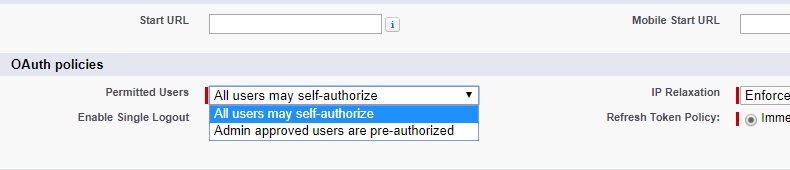
You have to enable users to Self-authorize

Setup >> Manage Connected Apps[Lightning]/ Connected Apps under Manage Apps[ Classic] >> Edit against connected app >> Select All Users may self-authorize in permitted users picklist

Connected apps

You are all set. Go ahead and try again and you will be prompted with allow window

How to get Id of the Object

Salesforce allows you to get the Key Prefix.

Key Prefix is 3 character unique key for each Object. There are two ways to find the Key prefix.

1) using schema.getGlobalDescribe()

For(Schema.SObjecttype obj: Schema.getGlobalDescribe().Values()){

System.debug(obj.getDescribe());
System.debug(obj.getDescribe().getKeyPrefix());

}


2) Every record Id first 3 letters is a Object KeyPrefix;

Contact cc: [Select id from Contact limit 1];
String keyPrefix = String.valueOf(cc.id).substring(0,3);